Which Phone Number Can You Use for WhatsApp Business, and What If the Code Never Arrives

Creating a WhatsApp Business account takes one free app and one phone number. The part people trip over is not the app. It is which number to use, and what happens to a number that already has WhatsApp on it. This post covers those two things, plus the code that sometimes never shows up.
It is the short version of the full guide on WABB: How to create a WhatsApp Business account. That guide covers the phone app. To use the same account on a computer, see WhatsApp Business on Web and Desktop.
There is no sign-up page
A WhatsApp Business account is created by installing the free WhatsApp Business app and registering a phone number in it. There is no separate sign-up website and no application to Meta. Search for WhatsApp Business in the Google Play Store or the App Store and tap Install or Get. WhatsApp’s own guide links only those two stores, so skip APK files from other sites.
Which number works
WhatsApp registers a mobile or landline number that you own, and you must be able to receive a call or an SMS on it. The business profile you create is public, so pick a number customers can reach you on rather than a private one.

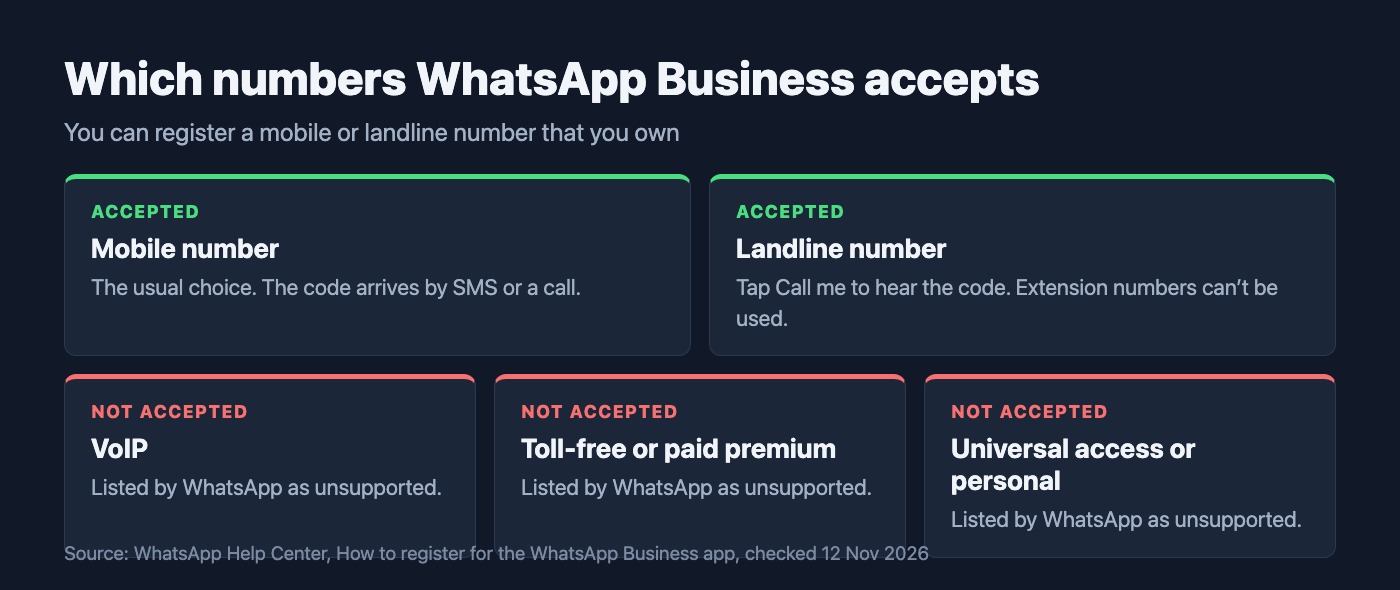
A few details from WhatsApp’s page:
- For a landline, tap Call me to get the registration code by phone.
- Landline extension numbers can’t be used. The code is sent only to the number you intend to use, so it has to ring through to a person.
- Turn off call-blocking settings, apps and task-killers before you start.
- On a phone, you need a working internet connection. Roaming or a bad connection may stop registration.
Source: WhatsApp Help Center, How to register for the WhatsApp Business app, checked 12 November 2026.
The API has its own number rules. If you are heading there, read WhatsApp Business API requirements first.
If the code does not arrive
A new number is verified with a 6-digit code by SMS. If it is slow, work through this list in order.

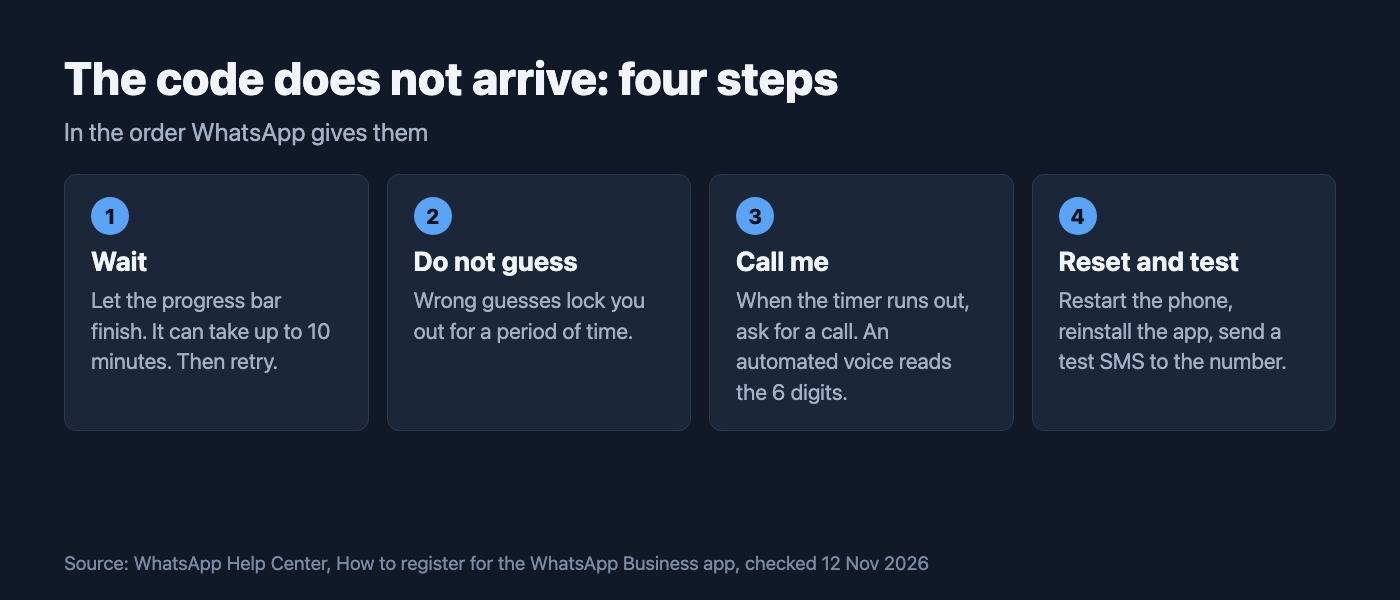
The wait can take up to 10 minutes. Wrong guesses lock you out for a period of time, and WhatsApp says never to share the code with anyone. Depending on your carrier, you may pay for the SMS or the call. WhatsApp also says it can’t send the code any other way for security reasons.
The number is already on WhatsApp
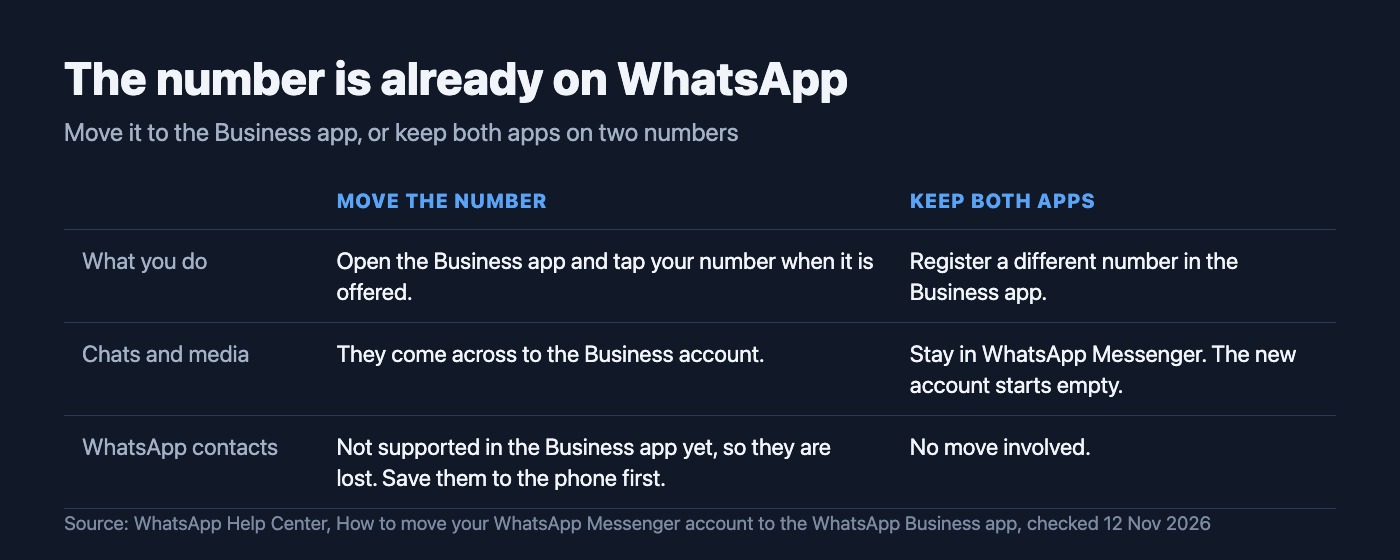
If the number is already used in WhatsApp Messenger, you have two clean options. WhatsApp recommends a backup of your account before you move.

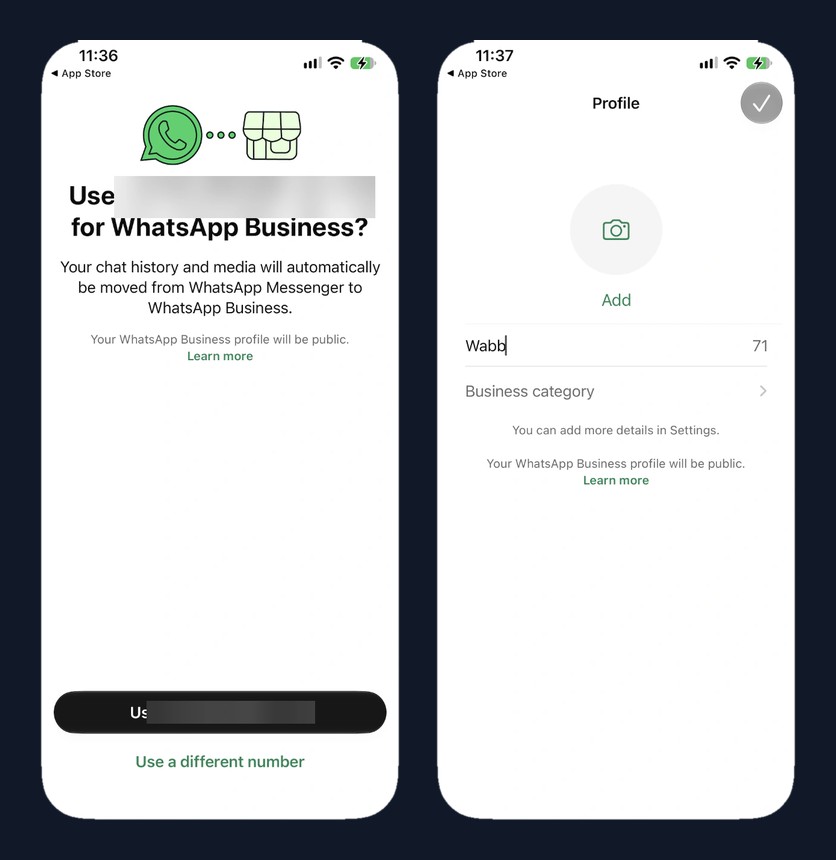
When the Business app opens, it detects the number from Messenger. Tap it to move it, or tap Use a different number and go through the normal verification to keep both. The screen also warns that the Business profile will be public.

One catch from WhatsApp’s page: WhatsApp contacts are not supported in the Business app yet, so any you created are lost in a move. In Messenger, turn that setting off and save the contacts to the phone’s address book first.
Source: WhatsApp Help Center, How to move your WhatsApp Messenger account to the WhatsApp Business app, checked 12 November 2026.
After setup
The account is live as soon as setup ends. These steps make it useful before the first customer writes:
- Finish the profile: hours, address, description and website. Setup doesn’t ask for them. See the business profile guide.
- Set a greeting and an away message, so a first message never lands in silence: greeting and away messages.
- Save your repeated answers with quick replies.
- Copy your short link and QR code: QR code and short link. For a custom pre-filled message, use the link generator, or put a chat button on your website.
- Link a computer: WhatsApp Desktop, how to download and install it.
Where the app runs out
The Business app is built for one owner or a very small team, and it does that well. Past a few people and a few chats a day, you hit its edges: who answers what, replies that depend on the question, and a shared inbox. For a team on one number, see several people on one WhatsApp Business number.
The next step is the WhatsApp Business Platform. WABB’s Connect WhatsApp Business App option keeps your number in the app and adds automation on top, with a no-code flow builder, an AI Agent and a shared inbox. The same idea is explained in WhatsApp Coexistence.
More from the same team
Published by the WABB team.